I share real-world lessons from building scalable systems at Jump Trading, Binance, and running mission-critical cloud ops at GovTech and Singapore Air Force. No fluff, just practical takeaways, hard-earned fixes, and deep dives that matter.
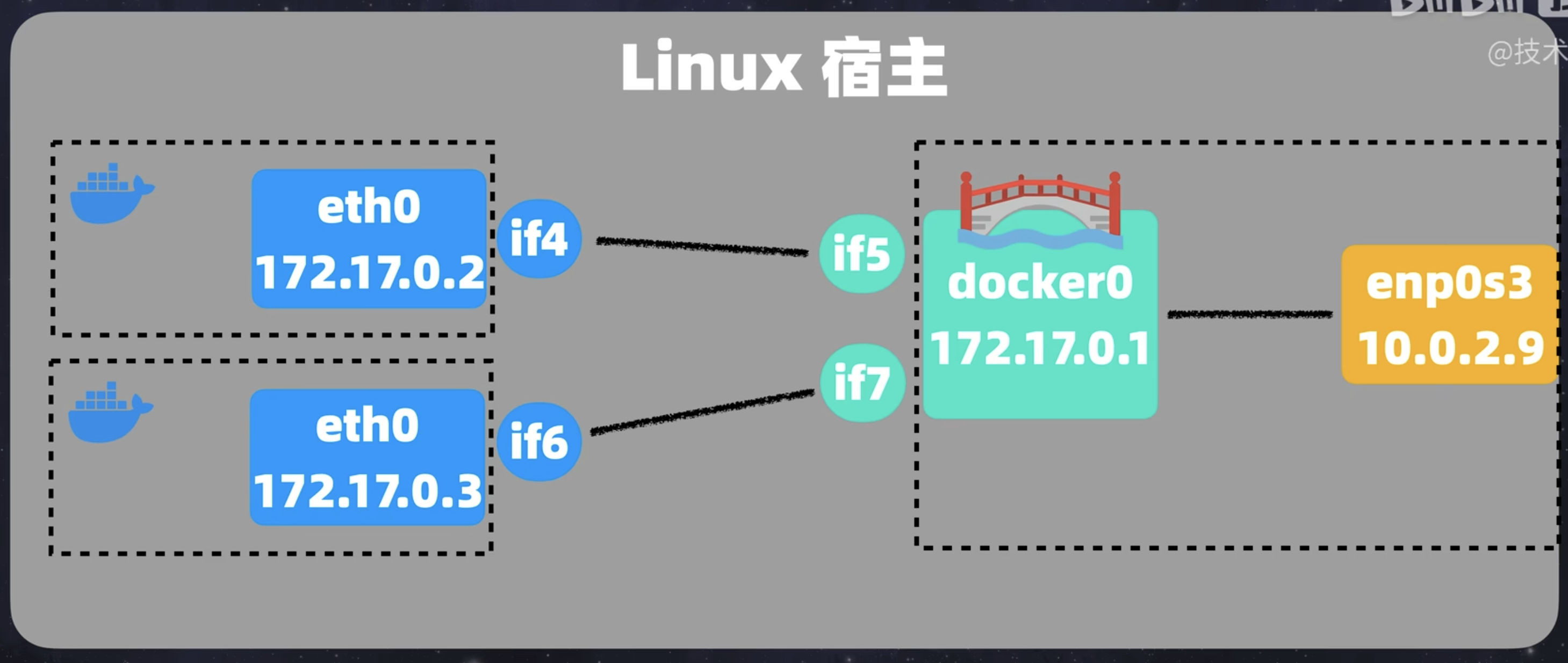
The default driver. Every container is placed on the built-in bridge unless told otherwise, each with its own Network Interface and Network Namespace
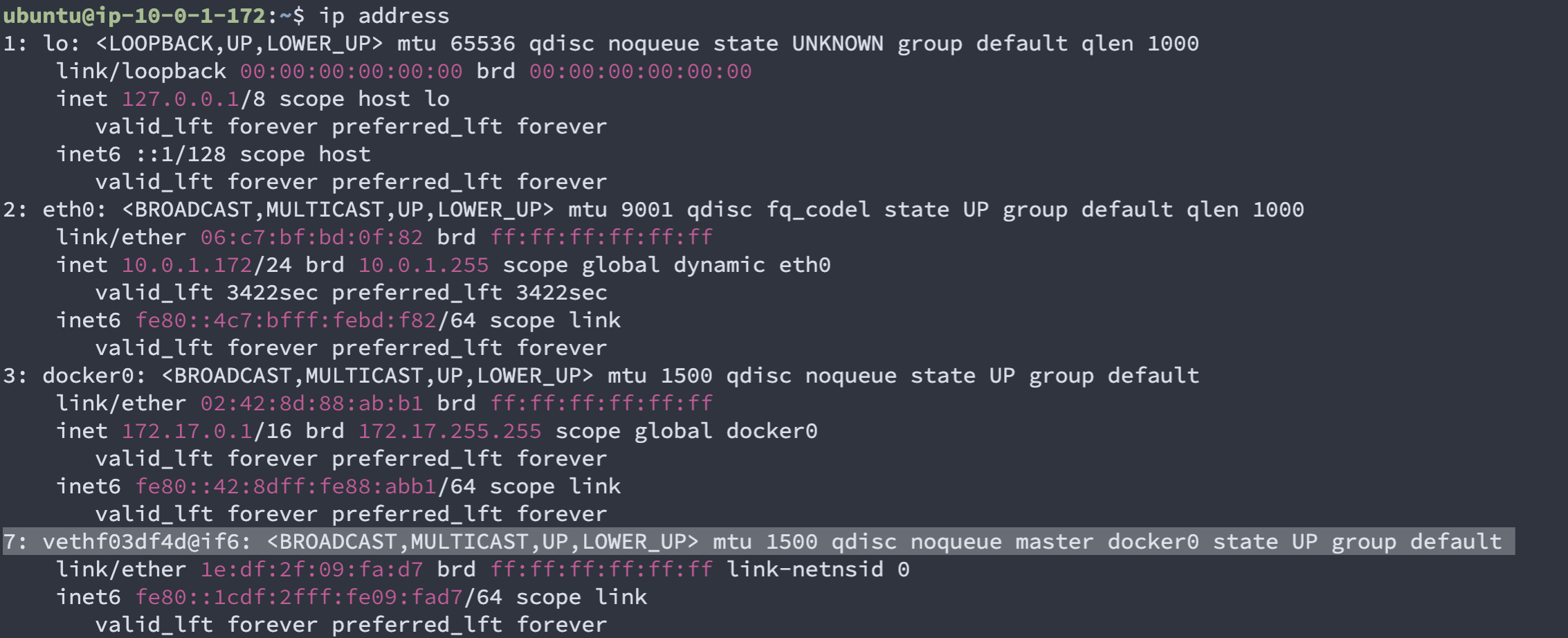
On the host, Docker creates a bridge interface docker0 (interface 3 below) with a veth endpoint (interface 7) for the container
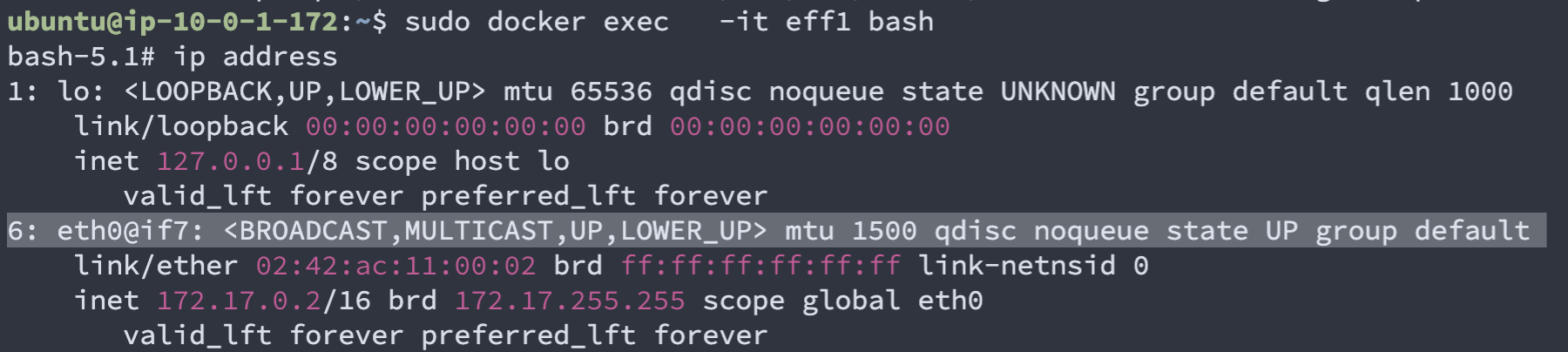
The other end of the Virtual Ethernet pair (interface 6) lives inside the container
Together they form the bridge connection between host and container
Reaching host apps from a container
A container cannot reach host apps via localhost because the network namespaces are isolated. The localhost shortcut only works on Docker Host Network where the host’s interface is shared.
Use host.docker.internal:80 instead. Docker resolves it to the host’s IP Address. Docker Desktop (Mac/Windows/Linux) sets this up automatically. On plain Linux Docker Engine, pass --add-host=host.docker.internal:host-gateway to opt in.
The built-in bridge has no DNS
Containers on the default bridge can only reach each other by IP Address, not by Hostname, and those IPs change on every restart. Always prefer a User-Defined Bridge Network for non-trivial setups.
User-Defined Bridge Network
A bridge you create yourself with docker network create or a docker-compose.yml. The recommended approach for almost all real-world setups
Containers on the bridge reach each other directly, and the host NATs their traffic out to the internet
From
To
Reachable?
How
Container
Same-bridge container
✅
http://<name>:<container-port> via Docker DNS
Container
Internet
✅
NAT via host
Host
Container
Only via -p
localhost:<host-port>
Internet
Container
Only via -p
Published host port
Two big wins over the built-in bridge
DNS Resolution by container name. Docker runs an embedded DNS server on user-defined bridges that resolves each container’s name (e.g. curl http://app:3000). This is NOT the container’s internal hostname (/etc/hostname), which is cosmetic. See the tip below for where the DNS name actually comes from
Talk on any port the app binds to, with no -p host:container mapping needed. -p only controls whether the host (and thus the internet) can reach a container, not whether other containers on the same bridge can. If app binds to :3000 internally and never publishes a host port, another container on the same bridge can still curl http://app:3000 while the host and internet cannot. This is what enables the Reverse Proxy Pattern
Where does the container's DNS name come from?
On a user-defined bridge, Docker’s embedded DNS resolves names from:
docker run --name foo: foo is the DNS name. --network-alias adds extras
Docker Composeservices: foo:: the service key is auto-registered. container_name: and networks.<net>.aliases: add extras (plus the auto-generated <project>-foo-1)
Gotchas: the built-in bridge has no DNS, so this only works on a user-defined bridge. And --hostname just writes /etc/hostname inside the container, it does NOT register with Docker DNS. Always use --name or the service key.
Mental model: the DNS name is a runtime identity chosen at launch, not a build-time property. That’s why you never set it in a Dockerfile.
Docker Host Network
Bypasses the network namespace. The container shares the host’s Network Interface directly, so a container on port 8080 is reachable at localhost:8080 with no -p flag, and the container can reach host apps the same way
No isolation
Two containers binding the same port will collide, and every port the container opens is exposed on the host immediately. Use sparingly.
Docker Null Network
Created with the none driver. The container has only a Loopback Network (lo), fully isolated from other containers, the host, and the internet. Useful for sandboxing or compute-only workloads with no network needs
Sharing Networks Across Compose Projects
By default, Docker Compose creates a per-project network <project>_default, so containers in different projects cannot talk to each other
To share, two compose files must reference the same network by name. There are two ways
Method 1: name: override
Setting name: bypasses the project-prefix rule. If two files use the same name:, they attach to the same bridge. Whichever project starts first creates it, no manual docker network create needed
external: true makes the network’s lifecycle independent of any single project, safer for shared infrastructure that outlives individual services. The name: override lets compose auto-create the network, saving a step. Good for prototypes.
Reverse Proxy Pattern
A common use of a shared User-Defined Bridge Network is running a reverse proxy like Traefik in front of backend services. Only the proxy publishes a host port. Backends stay unpublished and are reached container-to-container over the bridge
Traefik publishes -p 443:443 so the internet can reach it. Twenty’s 3000 is only reachable from inside network_intranet, where Traefik also lives. If Twenty also published 3000, the internet could bypass Traefik and skip TLS, auth, and routing, so leaving it unpublished forces all traffic through the proxy
How /home/services/ uses this
Every service folder under /home/services/ declares network_intranet as a shared network. Adding traefik.enable=true labels makes Traefik auto-discover it via the Docker socket. Dropping a new folder is enough to add a new service.
Useful Docker Network Commands
Command
Purpose
docker network ls
List all networks
docker network inspect <name>
Show a network’s config, subnet, and connected containers
docker network create -d bridge <name>
Create a . -d picks the driver (defaults to bridge)
docker network rm <name>
Delete a network (must have no attached containers)
docker network prune
Remove all unused networks
docker run --network <name> <image>
Start a container on a specific network
docker network connect <network> <container>
Attach a running container to an additional network
docker network disconnect <network> <container>
Detach a running container from a network
Run a container on the host network
docker run -d --network host hashicorp/vault server